
Overview
DreamHost's webmail service lets you compose email (with spell check, attachments up to 30MB, and a signature), manage your mail (check for new messages, thread conversations, subscribe to folders, search, and delete), and customize it (time zone, read receipts, signature, and layout). This article explains how to compose, manage, and customize email in webmail.
How do I compose an email?
The options below are available when composing an email.
How do I spell check emails?
When composing an email, you can run a Spell Check to ensure nothing is misspelled.
Click Compose in the left pane.
Type the body of your email.
Click the Spell button in the top menu. Misspelled words display in red text.
How do I attach a file?
Click Compose in the left pane and then click the Attach a file button to the left.
Webmail is a PHP application, and the maximum attachment size available is 30MB.
How do I add a signature?
See this article for instructions on creating a signature.
How do I manage my mail?
Once logged in, you'll be able to manage the following.
How do I check for new mail?
Webmail automatically checks and displays new mail when you leave it open. You can also click the Refresh button to manually check it.
How do I thread messages?
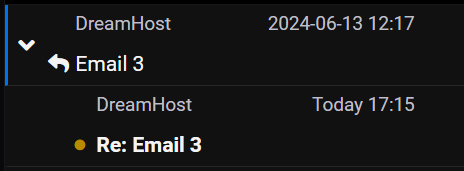
By default, any email sent or received appears in your Inbox in list format. Another view option is to enable Threads. When enabled, any ongoing conversation with the recipient(s) appears in its own thread in the list.
From the menu at the top, select Options.
In the List mode dropdown, select Threads.
Click the Save button.
Any messages responded to then appear in a thread, as shown below.
How do I subscribe to a folder?
Your email address may have several folders within it that do not appear in webmail. To display these hidden folders:
Click Mail in the left panel.
Click the folder icon or three-dot icon next to your address.
From its dropdown menu, select Manage folders to view a list.
Toggle the button to the right of any folder you wish to display.
Navigate back to your Inbox to view the folder.
How do I search emails?
You can search through your emails by clicking the Search field above the email list.
Please note that the search field only searches the Subject text in all emails. It does not search the email Body text. If you need to search the body text, the only option is to use an email client.
How do I delete emails?
Emails in the Trash folder can quickly accumulate and add to your mailbox disk quota.
Select the email (or emails) you wish to delete. They will be highlighted in blue. You can also select ALL emails in a folder by clicking the Select button and choosing * All.
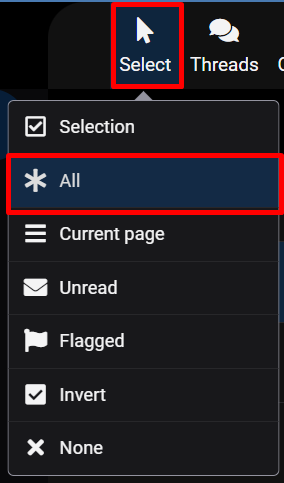
Then, click the Trash icon to delete them.
How do I customize webmail?
The following customization options are available.
How do I change the time zone?
Webmail defaults to the server's timezone. To change it to your local time:
Log in at webmail.dreamhost.com.
In the left pane, click Settings.
Choose Preferences.
Choose User Interface.
Select your time zone from the dropdown menu.
Click the Save button to save your changes.
How do I enable read receipts?
Read receipts attempt to notify you when the recipient has opened the message you sent.
To enable this feature in webmail, click Settings > Preferences > Composing Messages, and then toggle on the Always request a return receipt option.
Keep in mind that some recipients will deliberately disable read receipts, and not all email providers and applications support the feature. As such, there is no guarantee that the feature will function, even if enabled in your mail client.
How do I customize my signature?
See this article for different ways to customize your signature.
How do I change the layout?
See this article for instructions on changing the layout of webmail.
