
Overview
You can manually move your website and its data between two DreamHost accounts by completing the following steps:
Alternative options
DreamHost offers a Site Transfer service that allows you to migrate a WordPress or non-WordPress site to DreamHost.
WordPress sites only
These options allow you to migrate a WordPress site to DreamHost or move it between accounts.
Migrate a WordPress site — See this article for various options to migrate your WordPress site to DreamHost.
Move a WordPress site between accounts — See this article to learn more about how to move a WordPress website from one DreamHost account to another.
Restrictions
The following restrictions apply to internal domain moves between accounts:
Active promotion—The Receiving account cannot use an active promotion. This means that if the account is still within the first year of hosting and the account owner signed up using a promotional discount, it's not possible to add the domain.
Referrers — The Receiving account cannot have a referrer (this also only applies if the account is within the initial year of service).
New account owners — If the domain you wish to move to your account is currently hosted on another DreamHost account, you must create a new account using a dreamhosters.com subdomain. You can then proceed with the steps below to move the domain and its data to your new account.
Contact support if you have any questions about the above restrictions.
How do I move my domain's data?
The following steps move your domain's data to a new DreamHost account.

Backing up your domain's data
This step backs up your domain's data to your home computer.
Do NOT delete the domain from your panel until you have backed up all data, as this may permanently delete your data.
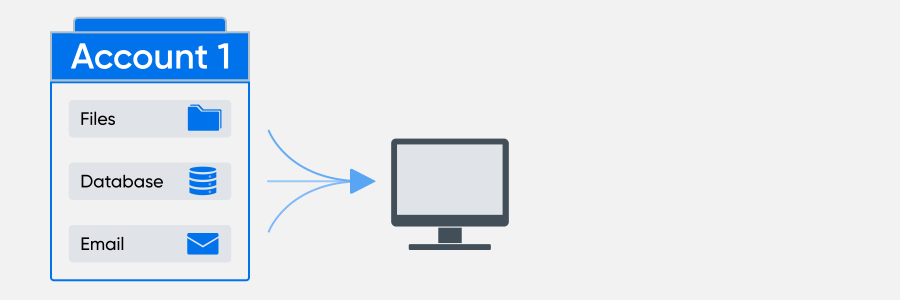
The following articles provide information on how to back up your website files, database, and email:
Website files — Use an FTP client to log into your DreamHost server and download your website files.
Database file — See this article for various database backup options.
Email — See this article for instructions on how to back up your email to your computer using an email client with a POP connection.
Full account backup
You can also run a full account backup in the panel, which includes website files, databases, and email.

Moving the domain's hosting
You can now proceed with moving your data to the new account.
There will be unavoidable downtime as you migrate the domain between accounts.
Follow the instructions in the Deleting a domain article to delete your domain from the panel.
Log in to the second DreamHost account at panel.dreamhost.com.
Follow the instructions in the Adding a Domain article to add this domain to the new account.
Once the domain is fully hosted on the new account, you can then proceed with uploading all of the content you backed up.

Uploading website data
This step uploads the data you previously backed up to the new DreamHost account.
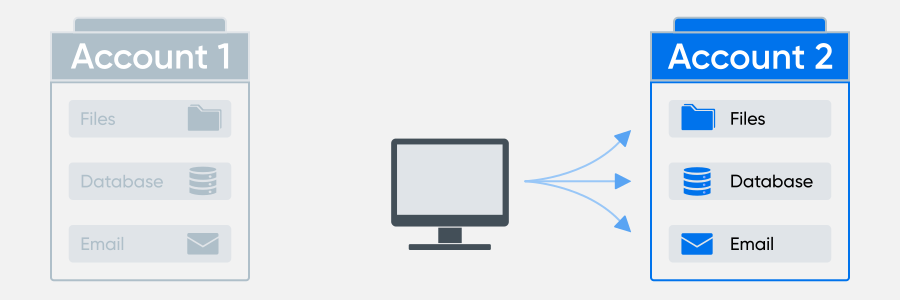
Website files — Use an FTP client to log into your DreamHost server and upload your website files. See this article for instructions on where to upload the files on the server.
Database file — See this article for instructions on how to import your database.
Email — See this article for instructions on how to import email into your new DreamHost account.
Once the data has been uploaded to the new account and the DNS has propagated, the site then resolves from the new DreamHost account.
How do I transfer my domain registration?
Moving a domain registration between accounts is the same as if you were transferring it to another registrar. For instructions on how to transfer the registration only, see the following articles:
Moving the domain registration to the new account is not required to enable website hosting. However, having both the hosting and registration on the same account makes it simpler to keep track of both.
Also, some international domains cannot be transferred from one account to another by the customer. In these cases, the receiving customer’s panel requests that they contact support for further assistance.
